Create a Sell order
Create a Sell order lists your shares for sale and publishes the order to the market.
Open Sell
Open Portfolio → Owned and select the property position you want to sell.
Click Sell to open the Sell order panel.
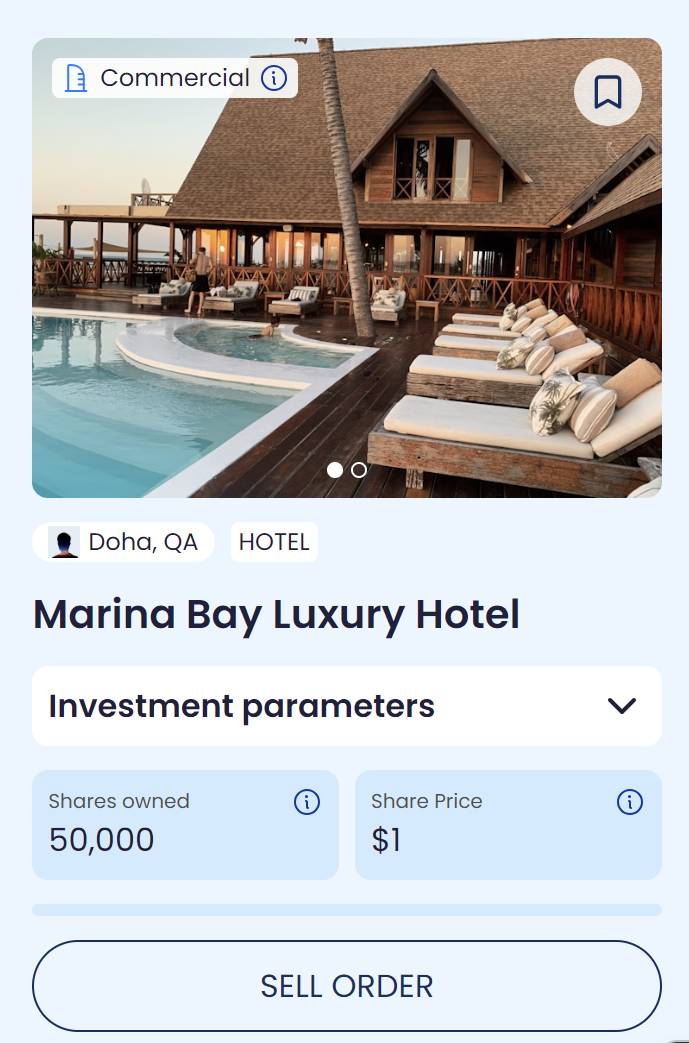
Sell order context
The panel shows the asset context (property name + asset card) and your available shares for sale.
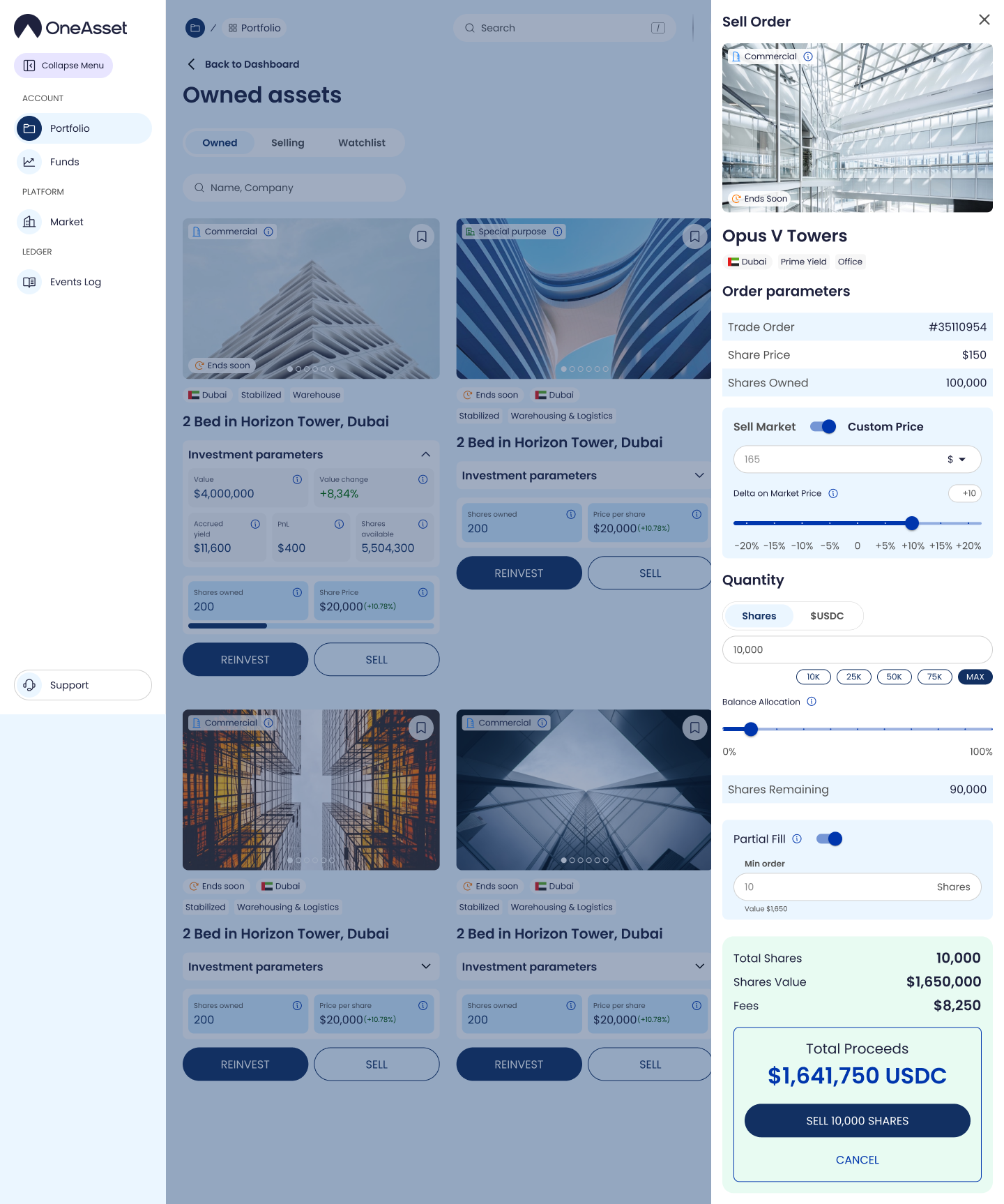
Sell Order Panel
The Sell Order panel is a trade ticket for creating a sell offer.
Header
Trade Order (order number)
SELL (highlighted in red)
Asset summary
Asset card (photo + name)
Market Share Price
Shares Owned
Pricing mode
Toggle: Sell Market / Custom
Sell Market: uses current market share price
Custom: enables custom price inputs
Custom price controls (when Custom is selected)
Custom price (numeric)
Delta vs Market Price (slider preset points):
-20%, -15%, -10%, -5%, 0, +5%, +10%, +15%, +20%
Percentage delta field updates dynamically based on custom price
Quantity
Quantity input
Mode selector: Shares / USDC
Quick selection buttons based on holdings (examples): 10% / 25% / 50% / 75% + Max
Balance Allocation slider (0% → 100%) updates dynamically
Fill rules
Partial Fill toggle (On/Off)
Min Order (shares and $ value at the offer price)
Order summary (auto-calculated)
Total shares to sell
Shares remaining (owned minus shares listed)
Shares value (shares × offer price)
Fees (and total fee amount)
Total Proceeds / Order Value (net after fees)
Confirm
Sell /X/ Shares
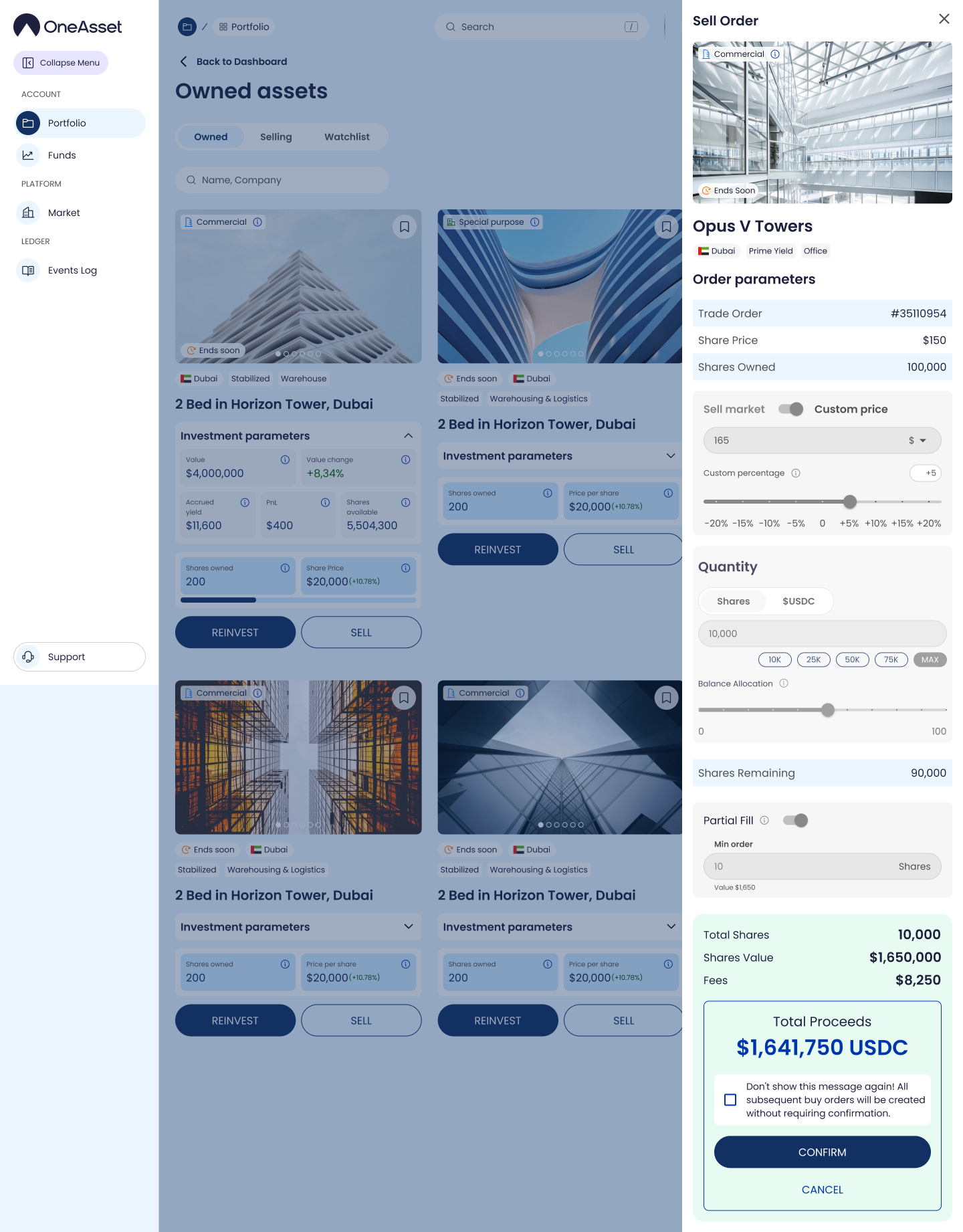
Sell flow (step-by-step)
Open the Sell panel from your Asset (or portfolio holdings).
Confirm Shares Owned and the Market Share Price.
Choose pricing:
Sell Market to list at market, or
Custom to set your own price and delta.
Enter Quantity (in Shares or USDC) using quick buttons or allocation slider.
Set Partial Fill:
If On: buyers can purchase portions, enforce a Min Order.
If Off: the sell offer is intended for a full-size purchase only.
Review Fees and Total Proceeds.
Confirm Sell /X/ Shares to publish the sell offer on the Secondary Market.