Review parameters and Buy
This page describes the Buy Order Panel and the parameters you must review before creating a Buy order.
Review Assets Investment Parameters
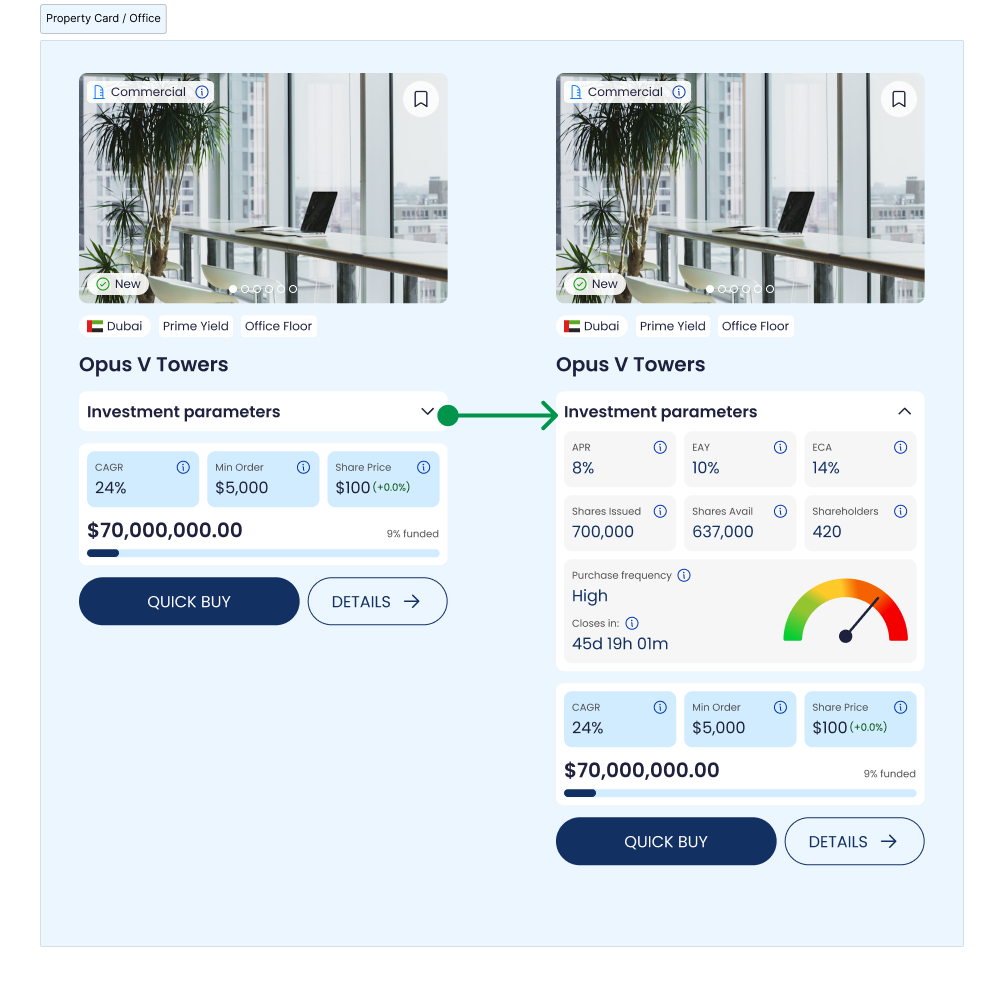
Review Parameters of the Property on the card by clicking the Investment Parameters.
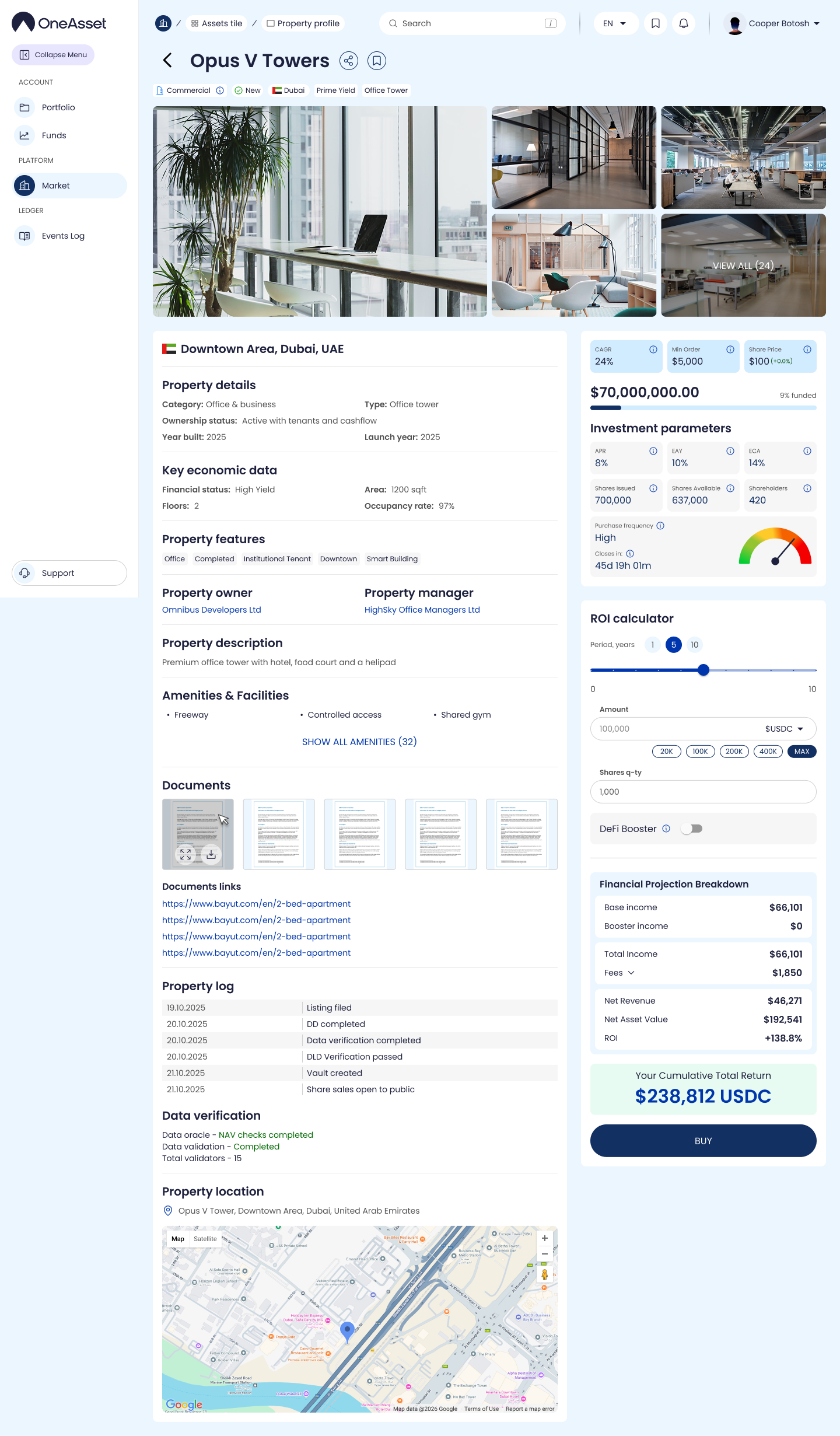
Click the Details button to see comprehensive information and financial data of the Property in the Property Page.
Open Invest
Click Buy from Quick Buy or from the property surface where Invest is available.
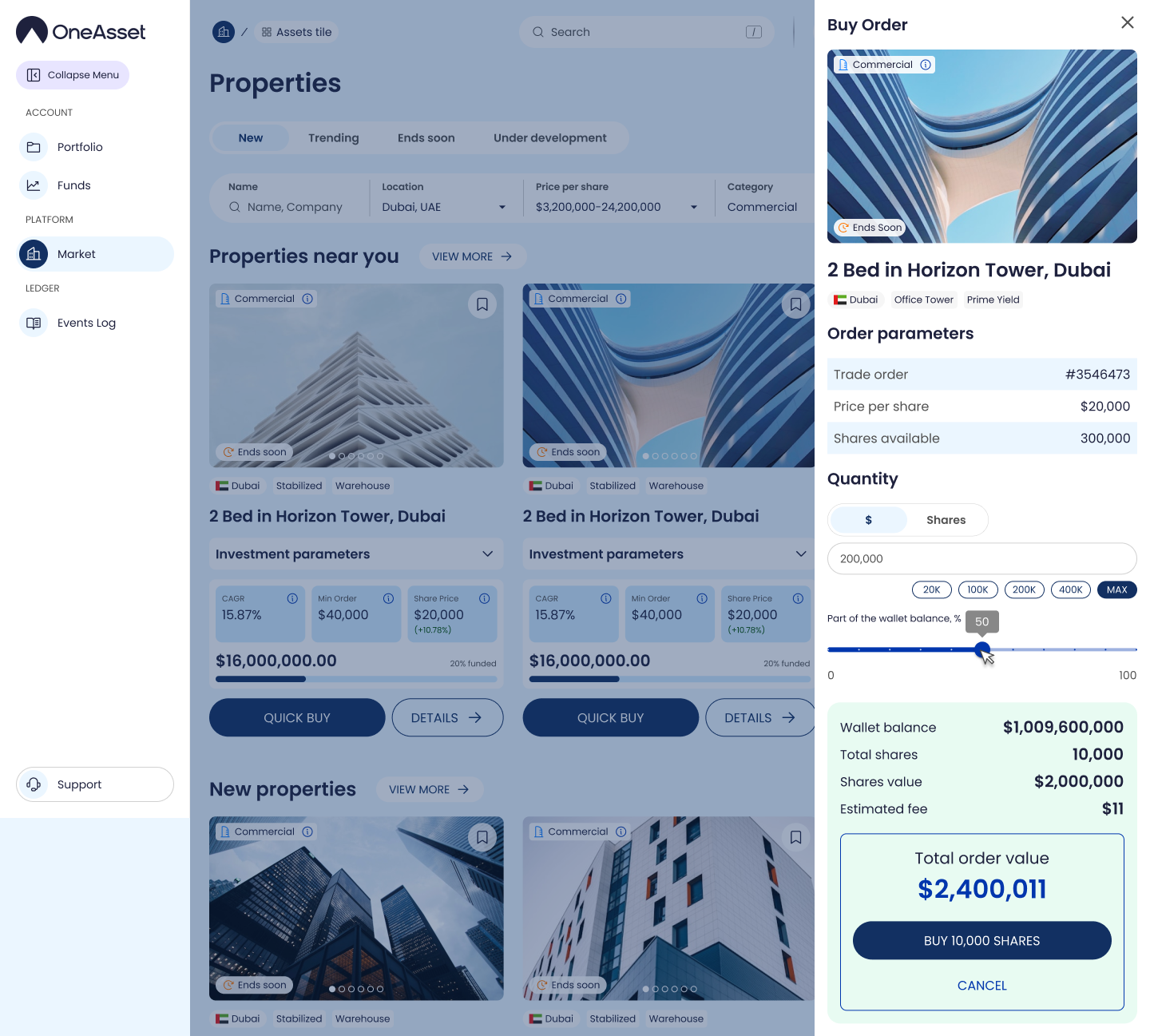
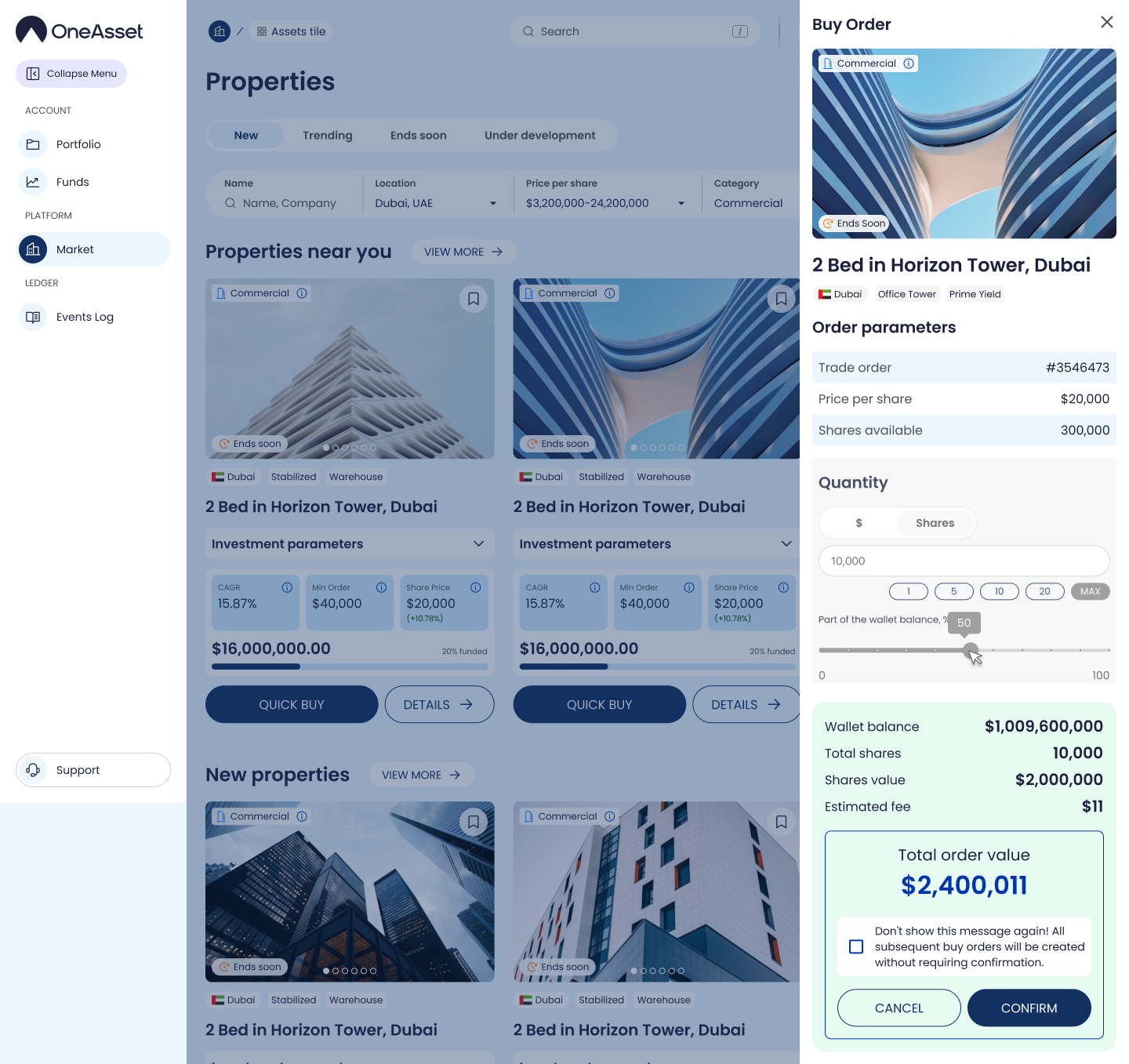
The Buy panel opens and displays the order context and inputs.
Order context
The panel shows: Trade order, order number, and a compact asset card (image + property name).
Price and availability
Review Share Price and Shares Available before entering quantity.
Quantity selection (USDC / Shares)
Choose input mode: USDC or Shares.
Enter the amount; the panel calculates the corresponding value in the other unit.
Balance-based selection
Use the slider to select 0%–100% of wallet balance for the order sizing.
Use Max to auto-fill the maximum purchasable amount for the selected mode.
Totals and fees
Review calculated fields before buying: Total shares, Balance available, Est. Fee, Order value.
Buy action
Click Buy /X/ shares to proceed to order confirmation.
Confirmation prompt
After clicking Buy, the panel replaces the Buy button with:
“Total order value $X, Cancel or Confirm"
Confirm / Cancel
Click Confirm to place the order and proceed to wallet signing.
Click Cancel to return to the buy input state.
Don’t show again
Select “Don’t show this message again!” to skip the short confirmation prompt in future buys.
Order placed message
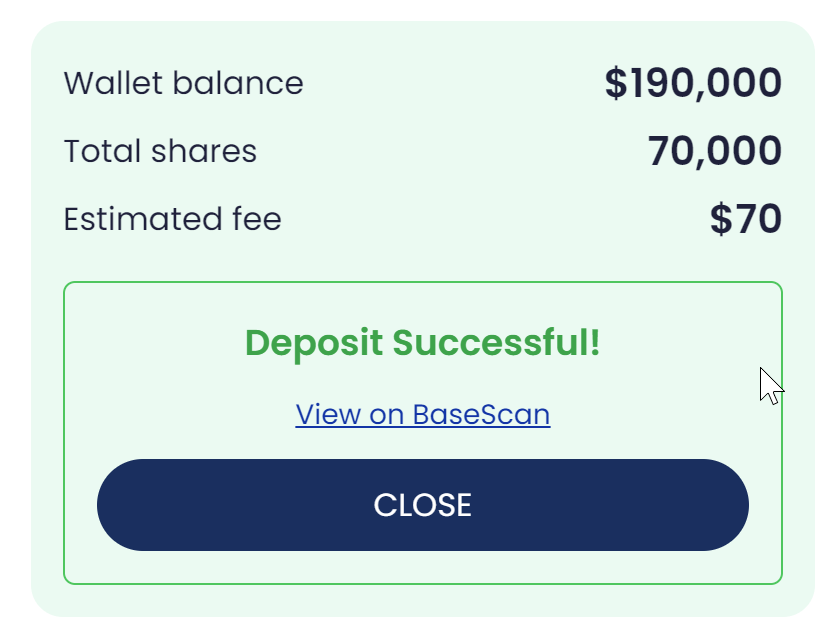
After placement, the UI shows: “Deposit successful” and a link to the TX Hash with Close.
Click Close to close the message.