Profile & Roles
Profile manages identity fields shown across the app (avatar, username) and registered contact methods (email, phone).
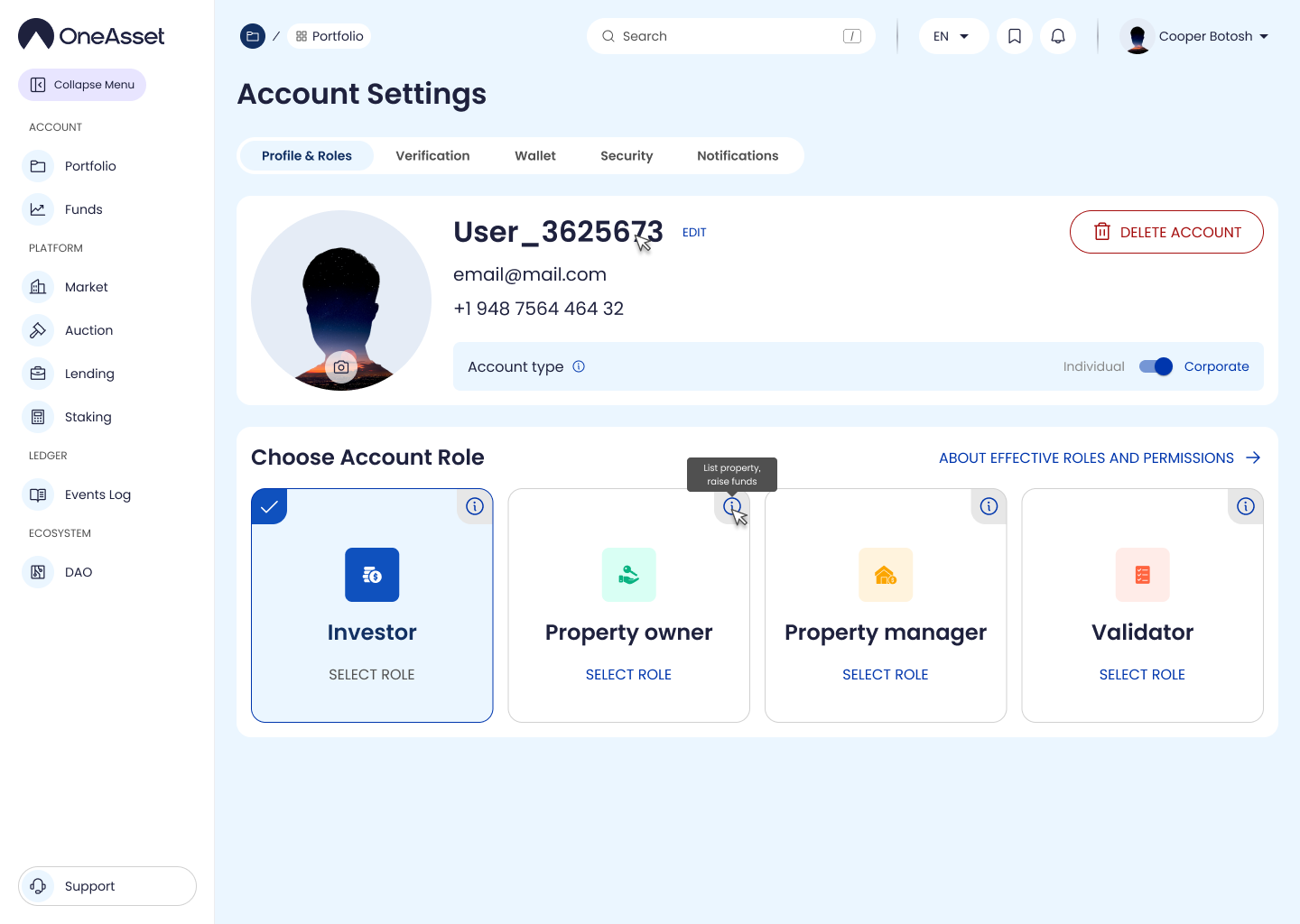
Avatar
Click the avatar camera icon to upload or change your profile image.
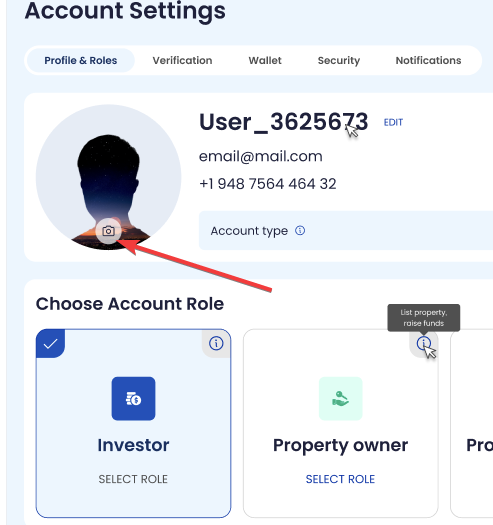
Username
Username is generated by default using the format: User/account order number/.
Click Edit/Change to enable input, then Save to apply the new username.
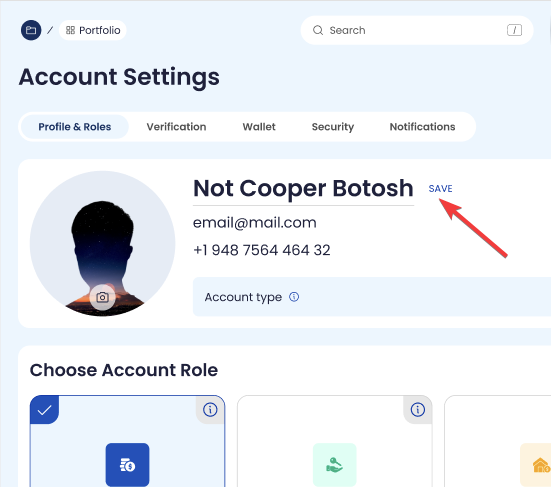
Email change
Click Change next to Email to open the change flow.
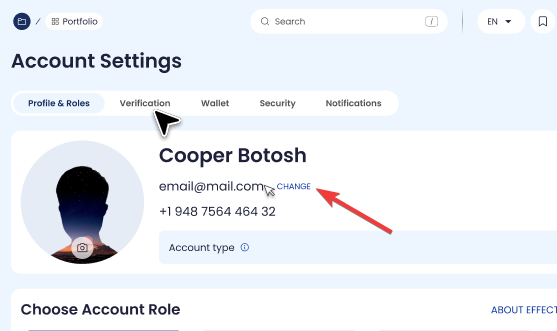
Enter new email → Send code → enter OTP → Save to activate the new email.
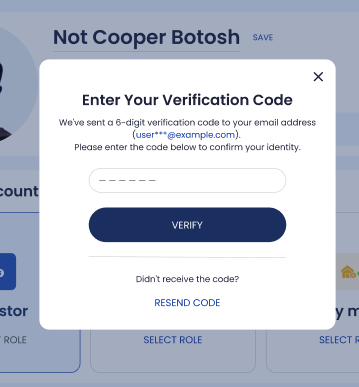
Phone change
Click Save (first-time) or Change (if already set).
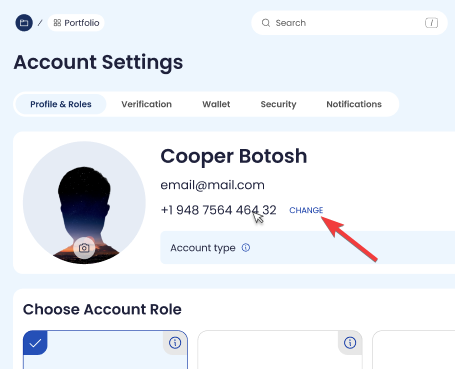
Enter new phone → Send code → enter SMS OTP → Save to activate the new phone number.
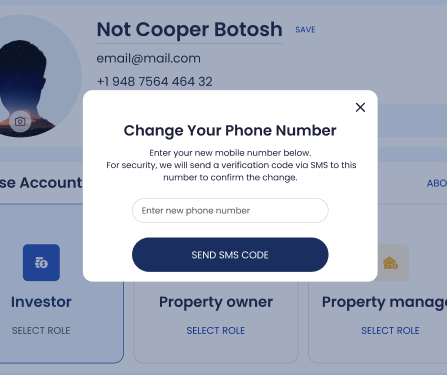
Save changes
Changes are saved automatically after each verification.
Account roles
Account roles controls which role capabilities are enabled on the account (when role switching is supported). Role toggles can auto-adjust when a selection conflicts with platform rules.
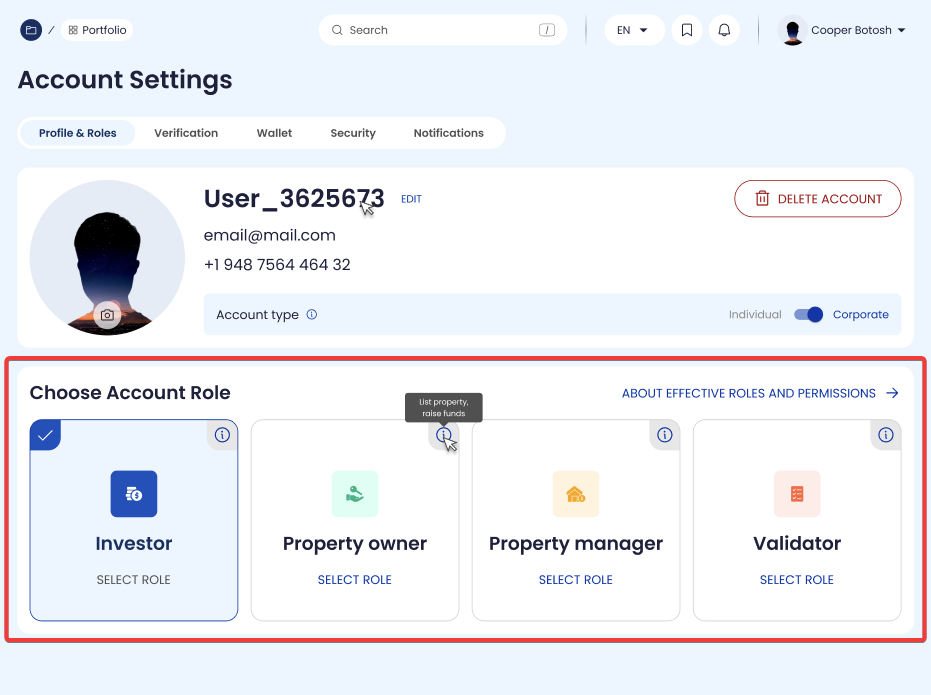
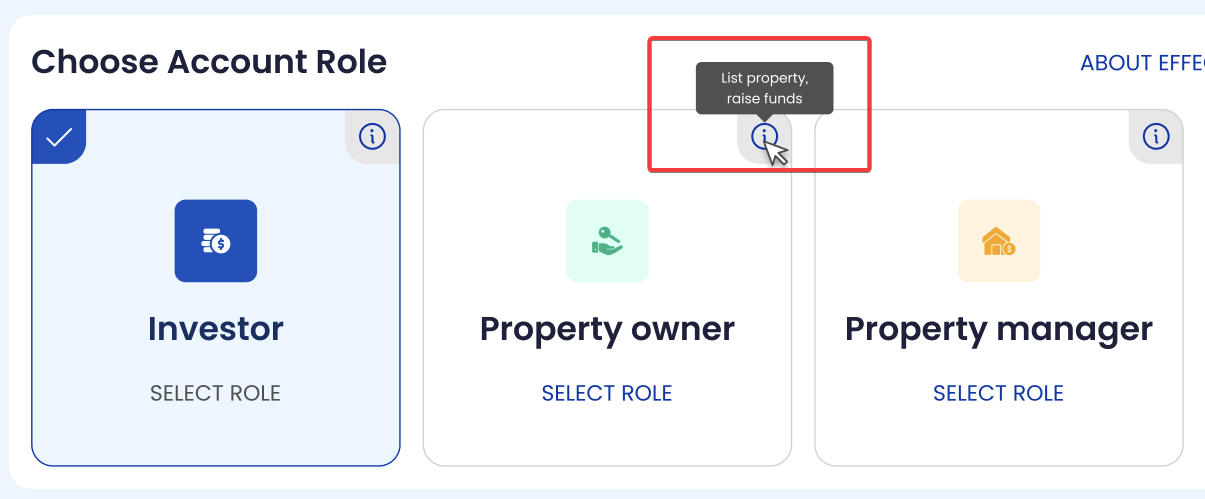
Role selectors (as displayed)
Investor
Property owner
Property manager
Validator
Role descriptions (tooltips)
Investor: Contribute capital, lend, borrow and govern.
Property owner: List property, raise funds.
Property manager: Operational execution, income distribution, reporting.
Validator: Authenticates data, keeps ecosystem secure.
Conflict handling
If selected roles conflict, the system automatically switches conflicting toggles off and shows the rule message.
Verification prompt
When role selection requires verification, the page shows a prompt to complete KYC/KYB (as displayed).
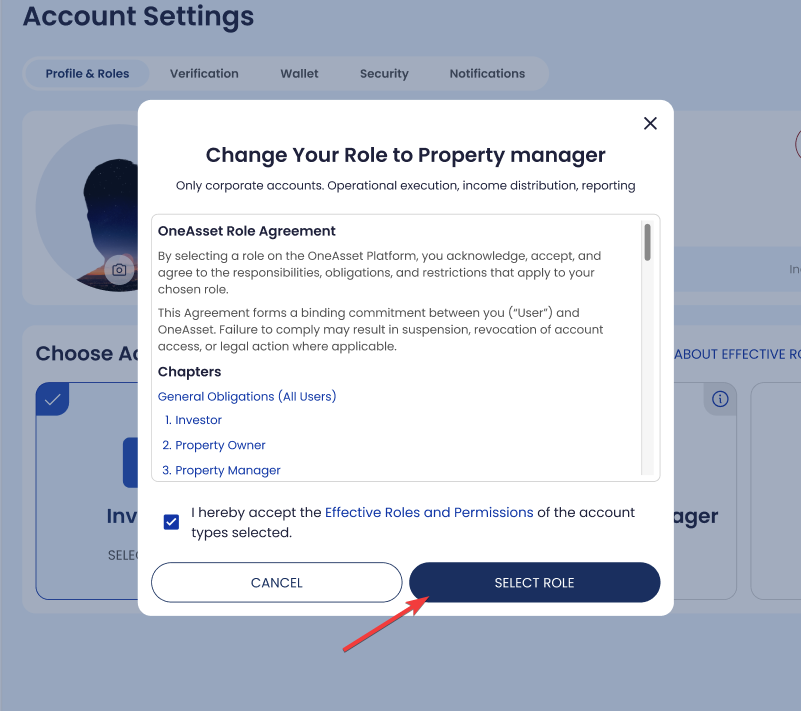
Proceed confirmation
Select the roles acceptance checkbox and click Select Role to apply.