Account Settings
Settings centralizes account configuration and access controls. It is the entry point for managing profile identity, verification status, linked wallets, security protections, and notification preferences.
Open Settings
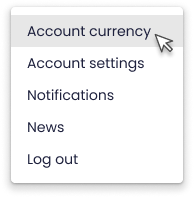
Click the Profile avatar in the header and select Account settings.
The Settings page opens in the main content area with its tabs visible.
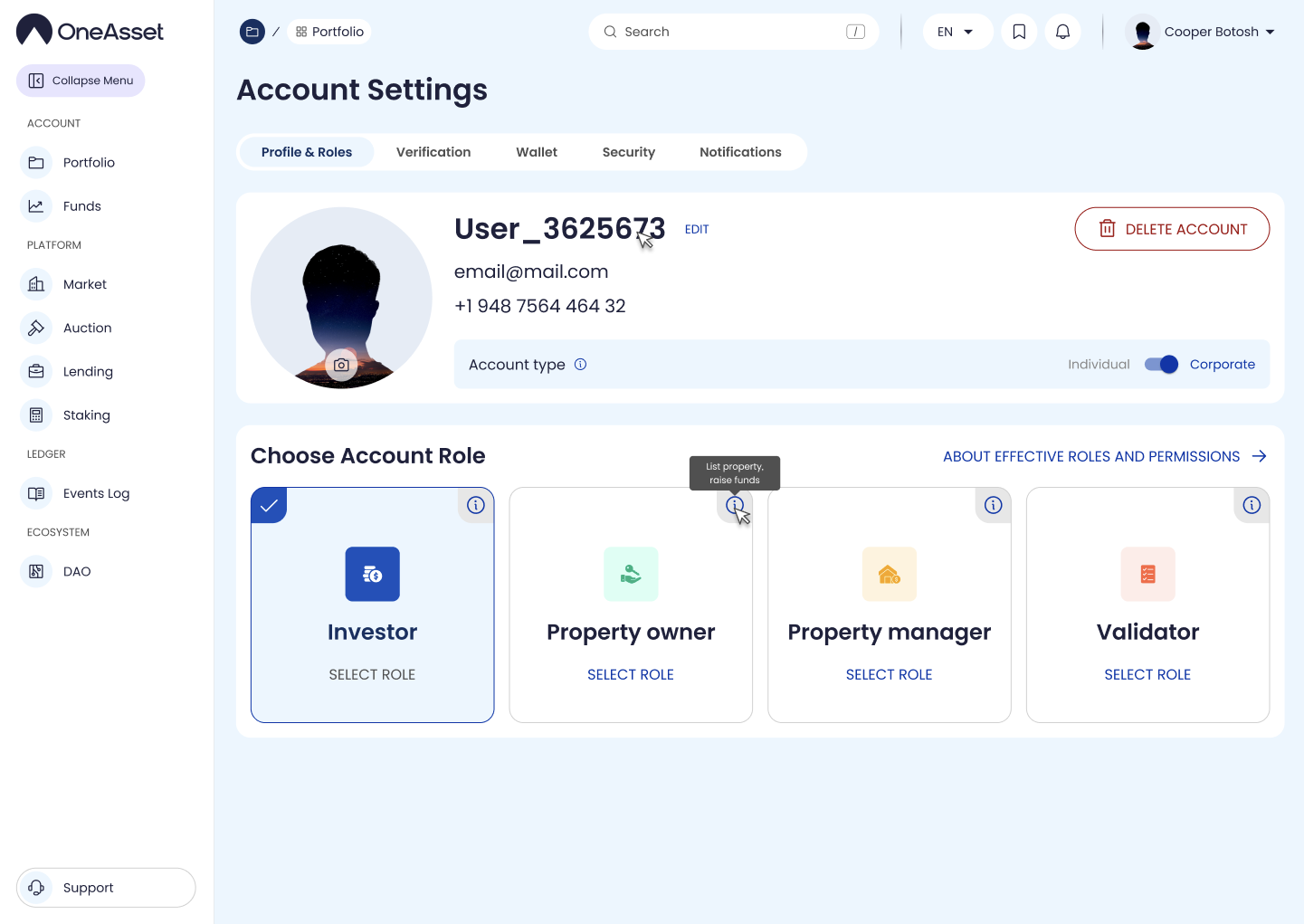
Profile & Roles
Profile manages account identity, account type, and contact information.
Account type
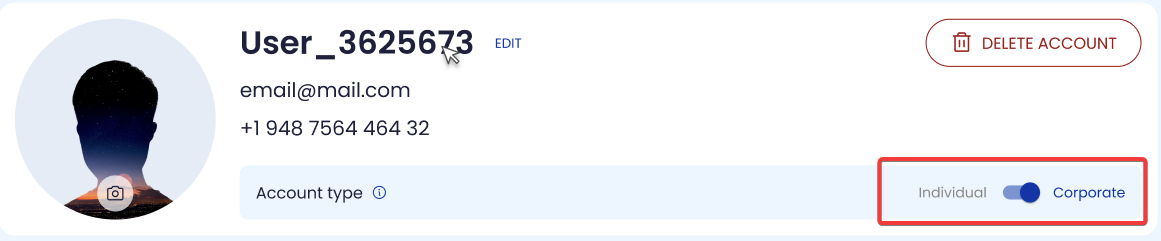
Use the Individual / Corporate toggle to set the account type.
When switching to Corporate, the Verification flow requires KYC + KYB, and the UI prompts replacement of a personal email with a corporate email if needed.
Avatar
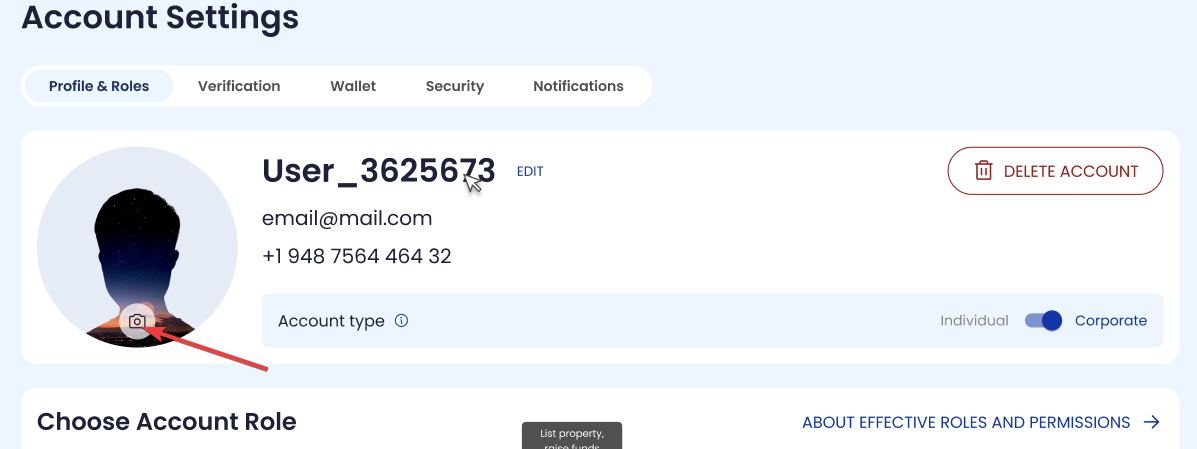
Click the avatar (camera icon) to upload or replace your profile image.
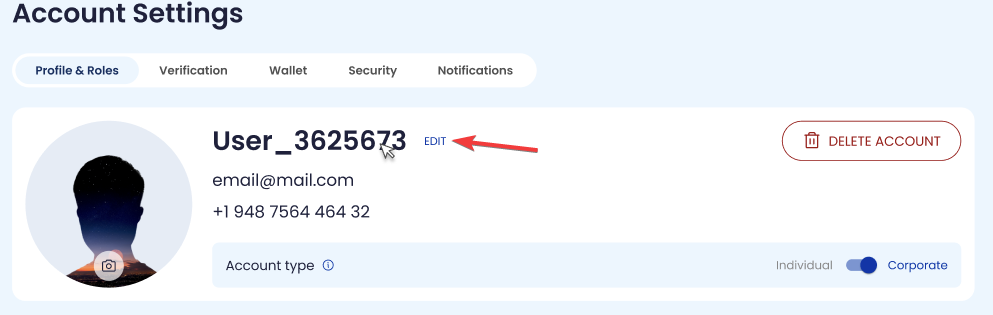
Username
The system generates a default username in the format
U/<account order number>/.Click to Edit enable editing; the system checks availability and censorship and then enables Save to confirm the new username.
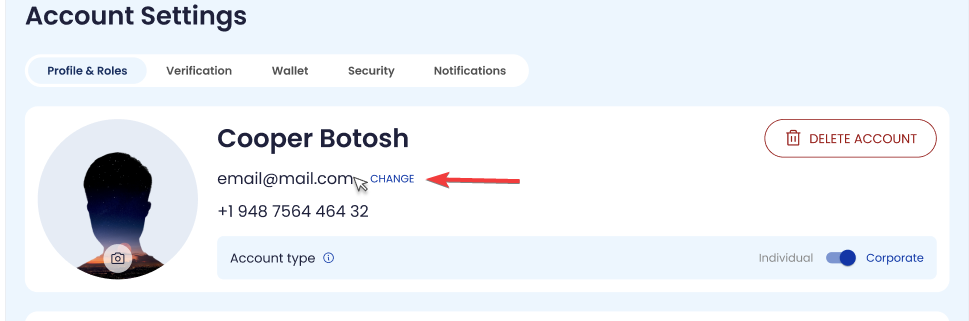
Email (change with OTP)
Click Change next to Email to open the email change flow.
Enter the new email, click Send code, enter the OTP received on the new email, then click Save to activate the new email and unlink the previous one.
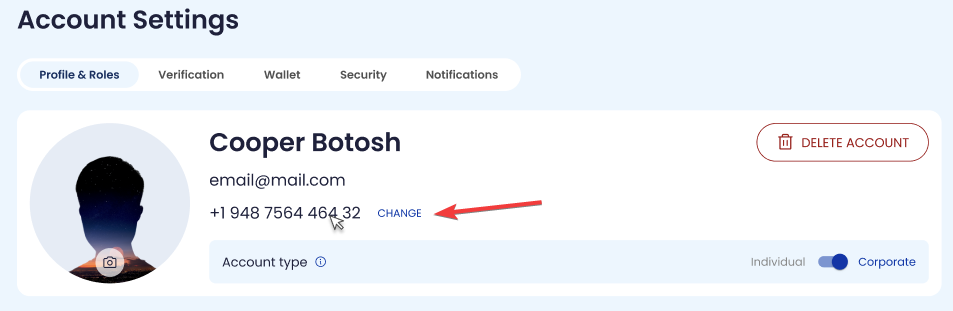
Phone number (change with OTP)
If no phone number is set, enter the number and click Save; if already set, click Change to start the update flow.
Enter the new phone, click Send code, enter the OTP received by SMS, then click Save to activate the new number and unlink the previous one.
Save changes
Changes of Email and Phone number will require a verification, whereas an OTP will be sent to verify changes.
All changes will be saved after a successful verification.