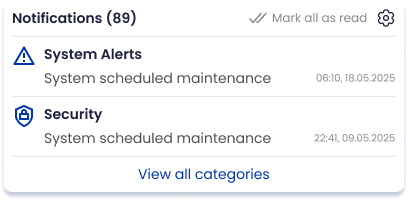
Notifications
Notifications surface account-level updates and system events relevant to your activity. They are accessed from the profile avatar menu and link back to the underlying event record.
Open Notifications
Click the Bell icon located to the left of the Avatar.
The notifications panel/list opens and shows the most recent items first.
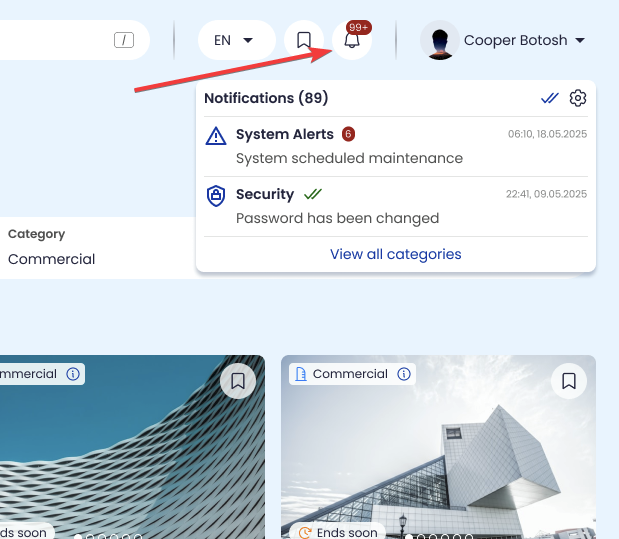
Notification item structure
Each notification includes a title, timestamp, and status/type (as displayed).
Selecting a notification opens its details view or routes to the related page/event.
Notification types
Notifications are used for state changes such as: account access updates, balance credits, order lifecycle updates, and other system messages.
The notification text indicates the affected area (e.g., System Alerts, Security, etc) and the next state.
View notification details
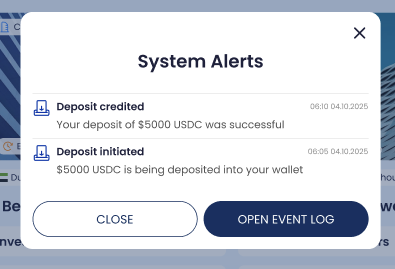
Click a notification to view more details and any available references (event ID, order reference, timestamp).
If a notification maps to an Events Log entry, the details view provides a direct link to that entry.
Managing notifications
Read/unread state (if implemented) updates when you open the notification.

Older notifications remain accessible via scrolling or pagination (as implemented).